
In iOS 27.2, Apple has a new settings menu that lets you choose which apps Siri, Search, and suggestions can access, all from one list. Here's what's changed and how to use the new menu.

With iOS 27.2, Apple has replaced the old App Access controls with a redesigned Excluded Apps feature that makes it a lot simpler to keep specific apps away from Siri, Search, and suggestions.
It's actually a bigger change than it might sound. Previously, excluding an app in iOS meant opening Settings ➝ Apple Intelligence & Siri ➝ Apps and adjusting each app's toggles individually. This included a switch that let Siri "Learn from this App," and several suggestion options that appeared in Search and widgets.
What was confusing is that some of these switches controlled on-device personalization, rather than access to an app's contents. Moreover, fully keeping an app's content out of search results also required toggling off a separate "Show Content in Search" switch that was buried in each app menu in Settings ➝ Apps.
Thankfully, in iOS 27.2, Excluded Apps consolidates all of this into a single multi-select list, where you can add an app once and make it unavailable to Siri, Search, and suggestions. Here's where to find it.
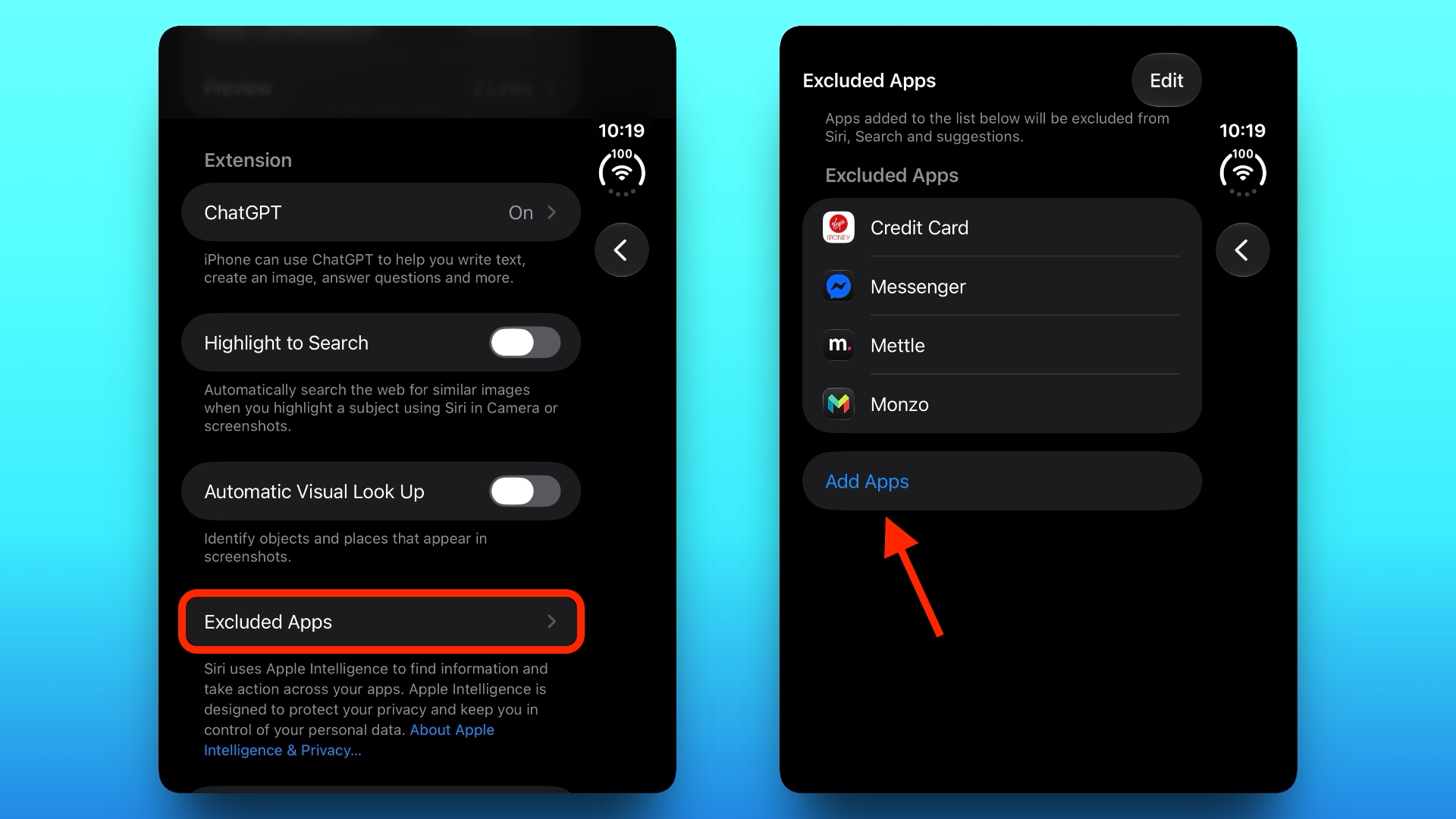
Bear in mind that excluding an app can disable some Siri features for it. For example, the Electronic Freedom Foundation found that excluding Messages stops Siri AI from reading or replying to messages. Also, onscreen awareness – where you invoke Siri and ask it for information about what you're currently looking at – will no longer work in any app you exclude.
To return individual app access to Siri and Search, simply tap the Edit button in the Excluded Apps menu, then tap the minus button next to the app in question and hit the checkmark at the top to confirm.
This article, "Prevent Siri and Search From Accessing Specific iPhone Apps" first appeared on MacRumors.com
Discuss this article in our forums
With iOS 27.2, Apple has replaced the old App Access controls with a redesigned Excluded Apps feature that makes it a lot simpler to keep specific apps away from Siri, Search, and suggestions.
It's actually a bigger change than it might sound. Previously, excluding an app in iOS meant opening Settings ➝ Apple Intelligence & Siri ➝ Apps and adjusting each app's toggles individually. This included a switch that let Siri "Learn from this App," and several suggestion options that appeared in Search and widgets.
What was confusing is that some of these switches controlled on-device personalization, rather than access to an app's contents. Moreover, fully keeping an app's content out of search results also required toggling off a separate "Show Content in Search" switch that was buried in each app menu in Settings ➝ Apps.
Thankfully, in iOS 27.2, Excluded Apps consolidates all of this into a single multi-select list, where you can add an app once and make it unavailable to Siri, Search, and suggestions. Here's where to find it.
How to Exclude Apps From Siri and Search
- Open the Settings app on your iPhone.
- Tap Siri.
- Tap Excluded Apps.
- Tap Add Apps, select the apps you want to exclude, then confirm your selection.
Bear in mind that excluding an app can disable some Siri features for it. For example, the Electronic Freedom Foundation found that excluding Messages stops Siri AI from reading or replying to messages. Also, onscreen awareness – where you invoke Siri and ask it for information about what you're currently looking at – will no longer work in any app you exclude.
Let an App Back Into Siri and Search
To return individual app access to Siri and Search, simply tap the Edit button in the Excluded Apps menu, then tap the minus button next to the app in question and hit the checkmark at the top to confirm.
Tag: Siri
This article, "Prevent Siri and Search From Accessing Specific iPhone Apps" first appeared on MacRumors.com
Discuss this article in our forums
Espace publicitaire · 300×250